

Applies to OP Manager App V2.6.0 and later.
Overview
In the app, configuration management maps to the Import configuration page. The desktop path is the same as on mobile.
Entry
- Open the device home (connection is required to apply imported results to the device; the import page itself may open while disconnected).
- Tap Advanced settings → Import more features.
- The Import configuration page opens (the app bar title is Import configuration).
Open Advanced settings from the device home. Tap Import more features to open the import configuration page.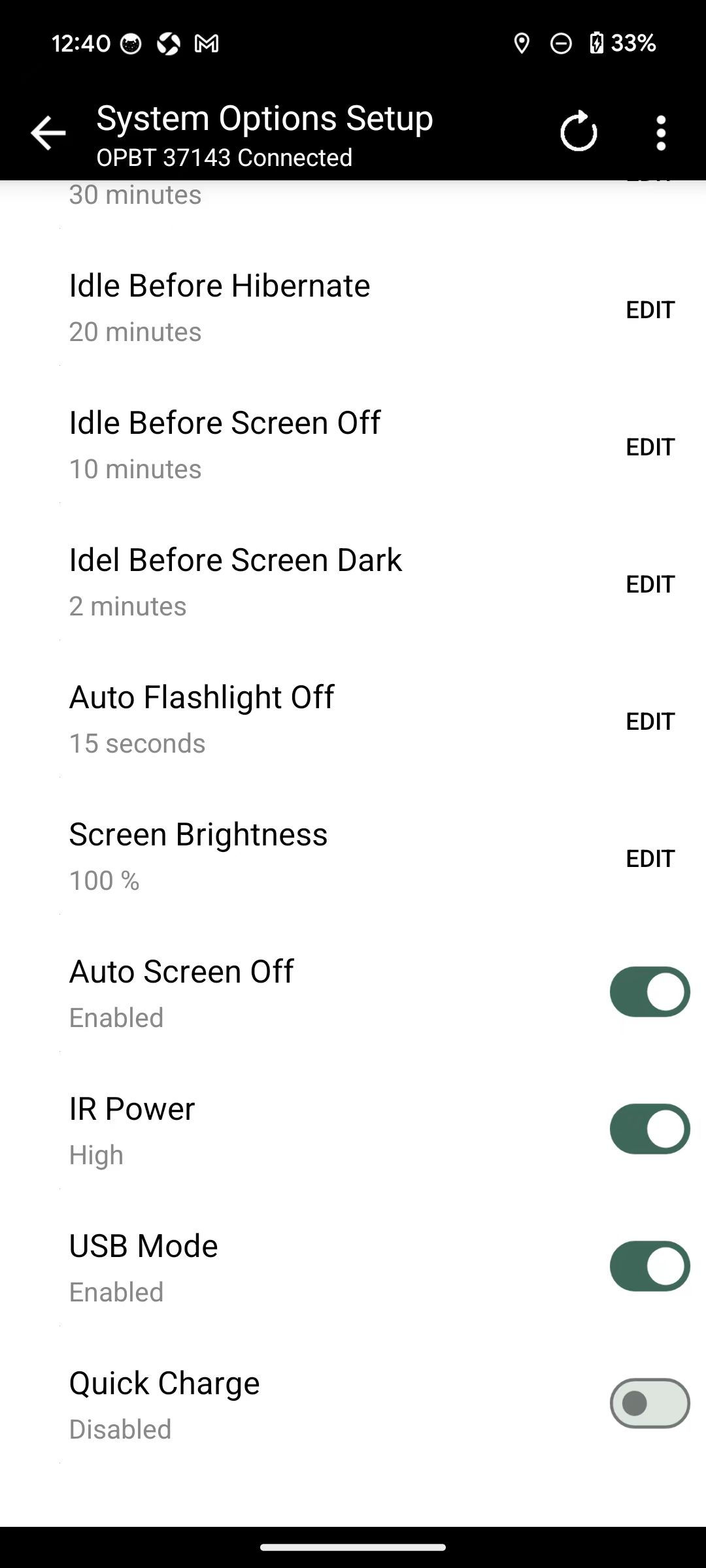
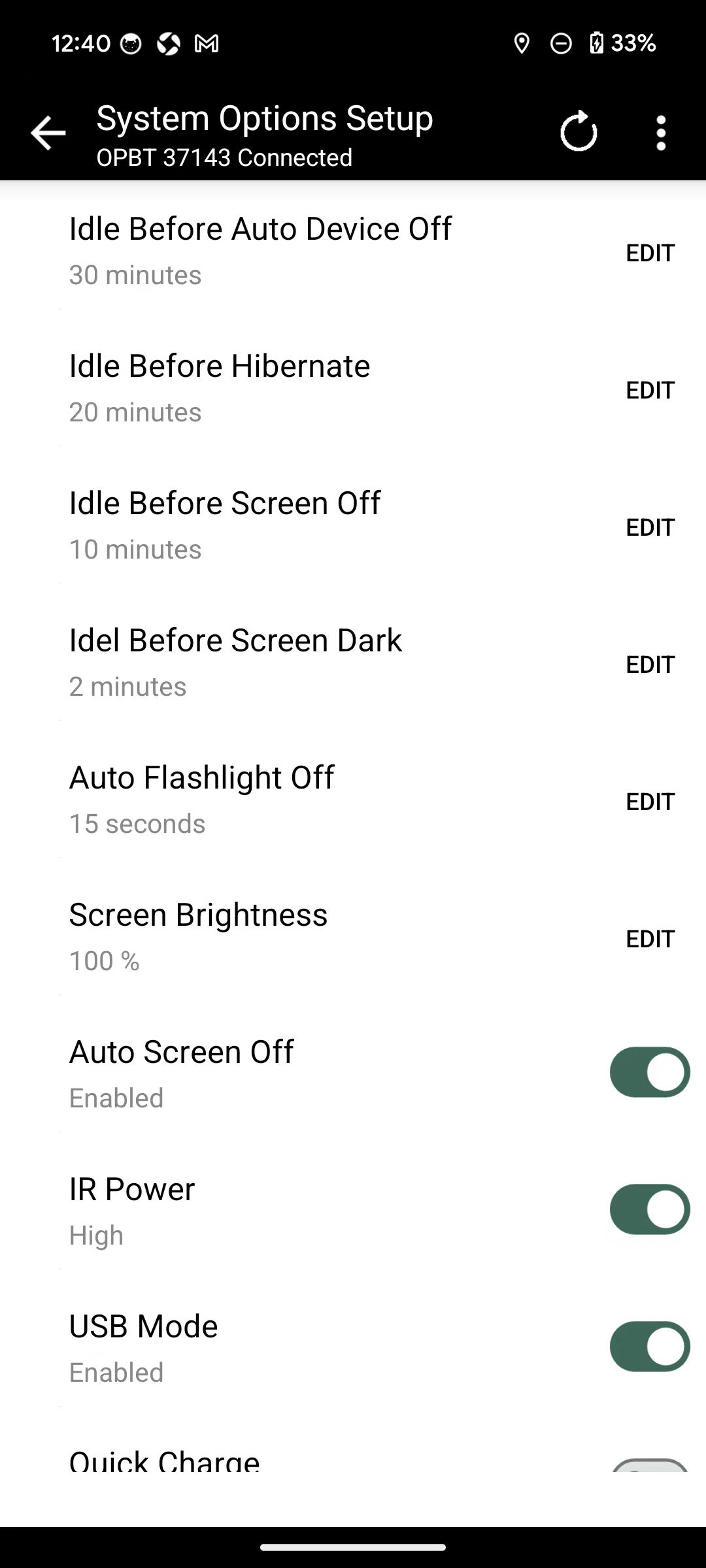
Import from a local file
- Tap Import from file at the top of the screen.
- Choose a
.jsonor.datconfiguration file (or similar). - The app detects plain or encrypted content, decrypts if needed, and parses the file.
- On success, a message similar to Configuration imported from file successfully appears and the item shows in the imported list below. Failures may report parse or decrypt errors.

Screenshot pending: configuration import (local / remote) UI
Import from a remote server
- Ensure the host is online.
- In URL or file name, enter either:
- A full URL, e.g.
https://example.com/config.dat - A file name only, e.g.
config_forwardmode.dat(imports the matching configuration from the official website)
- A full URL, e.g.
- Enter the password provided by your vendor (the app encrypts the password before sending it).
- Tap Import configuration from remote.
- After a successful download and parse, a message similar to Configuration downloaded successfully appears and the list refreshes.
Common messages:
- Incorrect password
- Download failed
- Failed to decrypt the file. The file may use an unsupported encryption method.
Imported list and using configurations
- The lower part of the screen lists all saved custom configurations by name.
- Tap the delete icon on a row and confirm to remove that configuration.
- If a newly imported configuration shares the same internal English name as an existing item, it overwrites the local configuration with that name.
- To use one: return to Advanced settings and tap the configuration name in group 3 to edit (see Advanced settings (two-level structure)).
Imported configurations appear only in Advanced settings group 3; there is no separate “Custom parameters” group on the device home.
Imported configurations appear in Advanced settings group 3.
Custom parameter file tool
Used to generate encrypted .dat or plain .json from a plain configuration (parameter file encryption page):
- Select a source configuration file.
- Check the groups / parameters you need; group names can be edited per language (supports the app’s 7 language fields).
- Use the ⋮ menu: expand / collapse, select all, output format (grouped or flat), whether to Enable encryption (on by default), etc.
- Tap Generate, then save
.dator.jsonin the system Save As dialog.
Common entry points: Advanced settings areas, lists related to the import configuration page, and desktop configuration management pages.