

Preparation
- Download TP-BT Firmware Upload tool.
- Download new TP-BT Firmware
- Connect your TP-BT with the uplink tool like this:
upgrading IEC standard model:

upgrading ANSI standard model:

Step One:

Step Two:
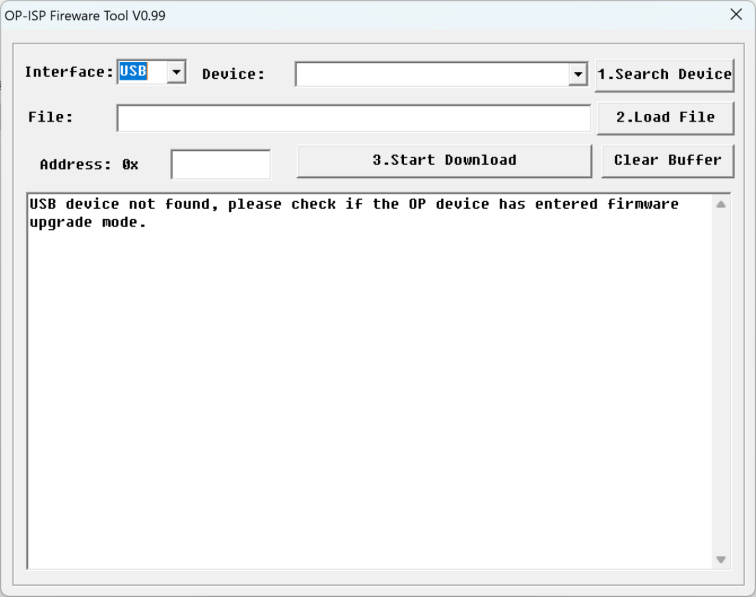
Step Three:
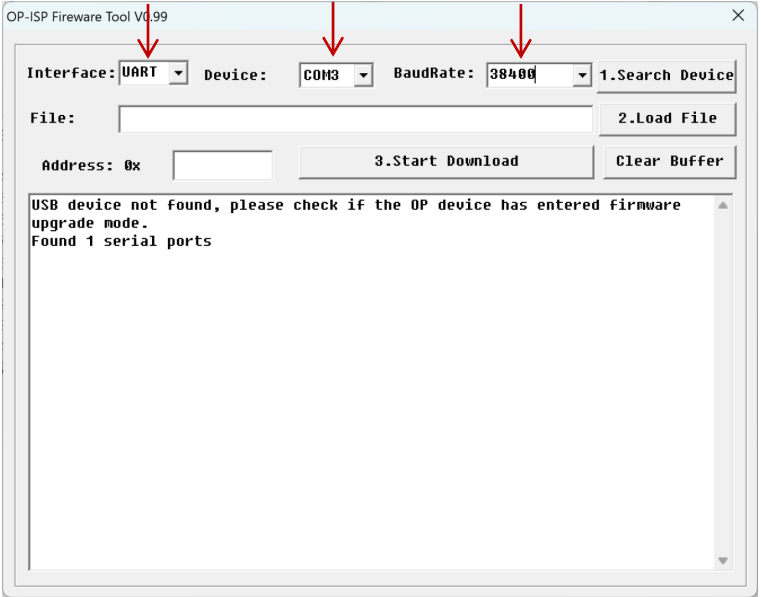
Step Four:
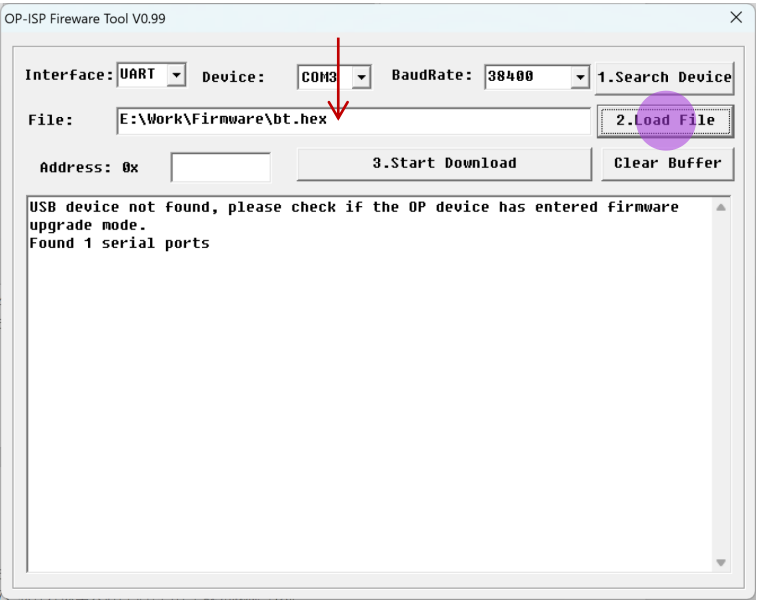
TP-BT Series Firmware Upgrade Guide (CH583 Series) I. Pre-operation Preparation:
- Latest firmware file
- Firmware upgrade tool
- Connection tool
- PC for Windows
II. Firmware Upgrade Steps:
-
Connect the connection tool to the computer, which will generate a COM port number (COMx).
-
Open the firmware upgrade tool <OP-ISPTool.exe>.
-
Configure the communication parameters of the firmware upgrade tool: Interface: UART Device: COMx (COM port number generated by the connection tool on the computer, COM3 in this example) BaudRate: 38400 (must be entered manually)
-
Click to load the latest firmware file.
-
Enter upgrade mode for the device to be upgraded: Quickly turn the power switch of the device to be upgraded on and off twice, when the working indicator green light is flashing, it has entered upgrade mode.
-
Connect the connection tool with the device to be upgraded.
-
Click the button, the firmware will start writing, the signal light of the device to be upgraded will start flashing, the firmware upgrade tool window will display the download progress in real-time status, the firmware writing process takes 8 minutes, please be patient.
-
When the firmware upgrade is complete, the firmware upgrade tool window will prompt: Firmware download successful.
-
After successful firmware download, turn off the power of the upgraded device for power reset.
III. Precautions:
- The connection tool and the device to be upgraded must be properly aligned
- Ensure the device to be upgraded has entered upgrade mode before operation
- Ensure the device to be upgraded has sufficient battery power
- Do not disconnect power during operation
IV. Common Issues and Solutions:
| Common Issues | Solutions |
|---|---|
| Firmware cannot be downloaded | - Incorrect interface selection in firmware upgrade tool |
| - Incorrect COM port selection in firmware upgrade tool | |
| - Incorrect baud rate selection in firmware upgrade tool | |
| - Incorrect alignment between device and connection tool | |
| - Hardware damage to the photoelectric conversion part of the device | |
| Firmware download fails during process | Follow the operation steps again |
V. Technical Support Contact For any technical issues, please contact our support team: Email: [email protected]